
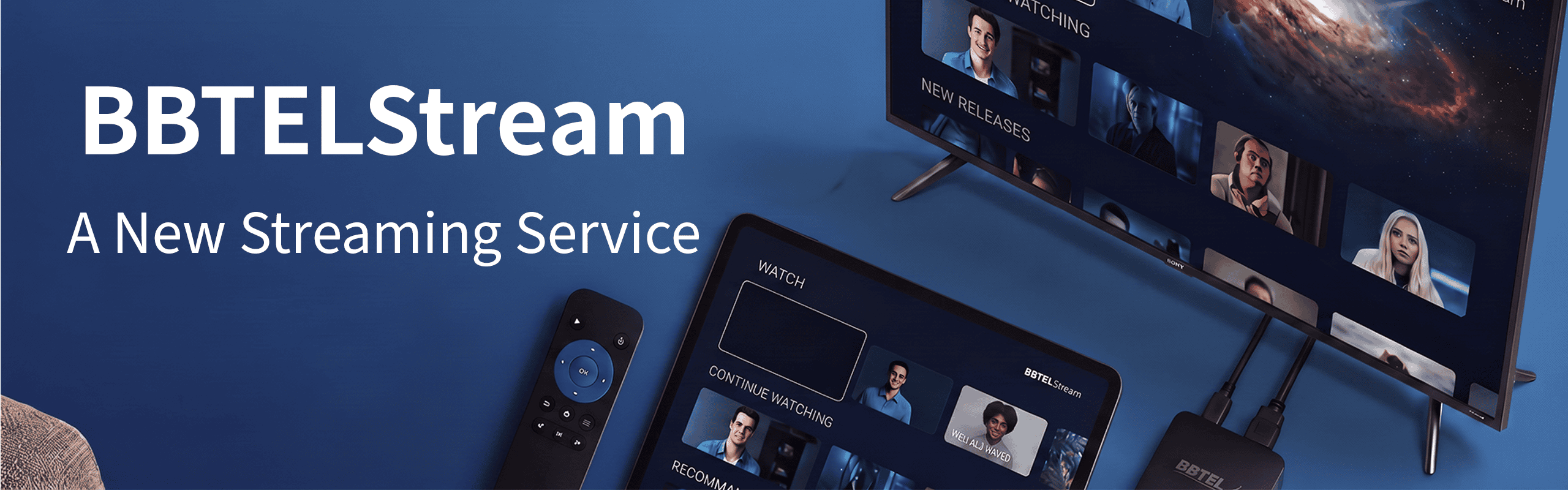
Your INTERNET is your TV.
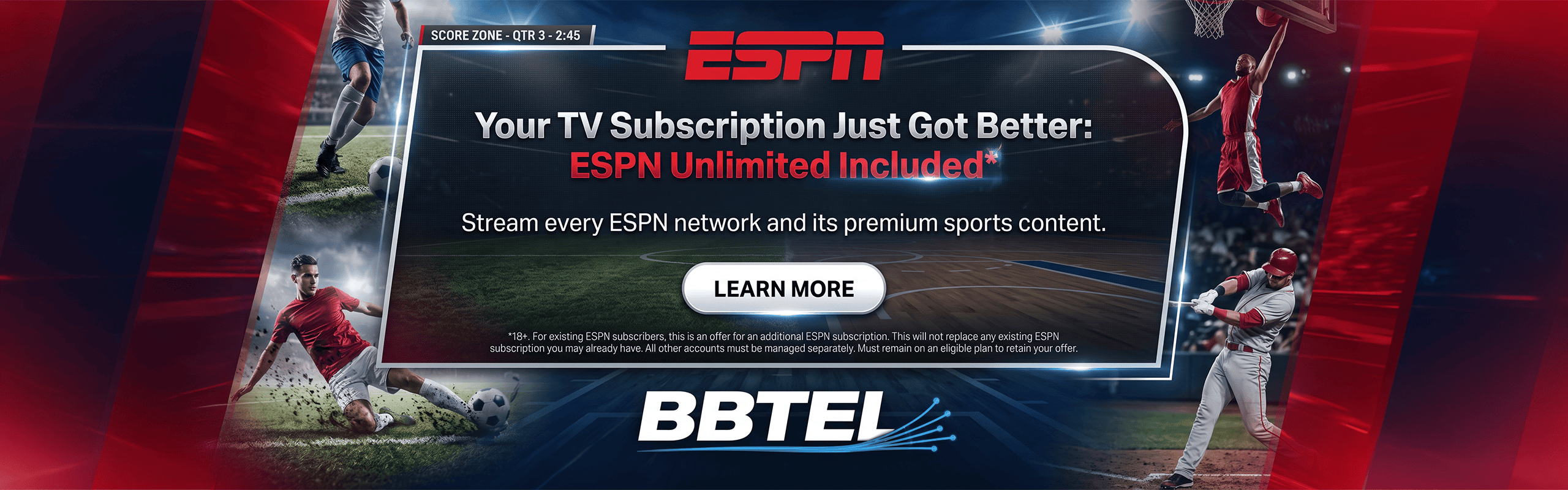
BBTELStream harnesses the power of the internet to bring you amazing TV viewing options. Utilizing BBTEL’s robust broadband network, you can stream TV, including local channels, to your Fire TV Stick, Roku, Apple TV, or set-top box, as well as Android and iOS devices.
FEATURES YOU’LL APPRECIATE
- PAUSE LIVE TV for up to 60 minutes. After 60 minutes live TV will resume.
- SIMULTANEOUSLY STREAM shows on up to 3 devices at the same time. Additional streams can be purchased for $4.95 per month per stream.
- RESTART LIVE TV to start viewing a program that has already started from its beginning.
- CATCH-UP TV feature allows you to replay recently-aired programs, which will be available for a certain period of time.
- NETWORK DVR can record up to 50 hours of content and store up to 120 days in the cloud.
- MOST RECENT CHANNELS function lets you see the last 10 channels you have watched. This can be great for switching between two shows or sporting events.
* Some features vary depending on streaming device.
SO MANY WAYS TO CONNECT
BBTELStream is compatible with a variety of streaming platforms.


iOS and Android

Apple TV and Chromecast
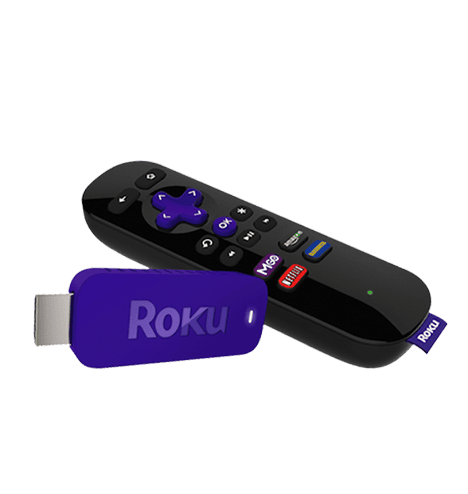
Roku and Roku TV
PACKAGES FOR EVERY BUDGET
BASIC
$55.10
plus taxes
30+ Channels (local)
HD & DVR
Replay TV
DELUXE
$128.10
plus taxes
100+ Channels (local)
HD & DVR
Replay TV
GOLD
$155.00
plus taxes
130+ Channels (local)
HD & DVR
Replay TV
HELPFUL RESOURCES
Frequently Asked Questions
IS BBTELStream INTERNET TV?
Yes. BBTELStream TV uses your BBTELConnect internet connection to stream content with your Fire TV OS, Roku TV or Apple TV, as well as Android and iOS devices for viewing whenever you want.
The faster your internet speed, the better your streaming quality will be. Fortunately, BBTELConnect offers speeds up to a gigabit per second!
HOW DOES BBTELStream Work?
Like Netflix, Hulu and other streaming services, BBTELStream TV is an app-based service. When you subscribe to BBTELStream TV, you’ll download the app on your streaming device (Roku, Amazon, FireTV, AppleTV, RokuTV, etc.) or Fire TV OS-enabled TVs. You’ll have access to all the channels available in your chosen subscription package.
DO I NEED BBTEL’S INTERNET SERVICE TO WATCH BBTELStream TV?
Yes, BBTELConnect Internet Service is required for BBTELStream TV.
WHAT DEVICES ARE SUPPORTED ON BBTELStream TV?
Streaming Devices
- Amazon Fire TV
Android OS 5.0+ / Amazon Fire TV Stick – Gen 3 and above
Android OS 5.0+ / Amazon Fire TV Cube – Gen 2 and above - Apple TV
- tvOS 14.0+ / Apple TV 4K – Gen 1 and above
- Roku
- Roku OS 9.3.x+ / Roku v3 and above (2015 and above)
TVs
- RokuTV Edition TVs
- FireTV OS Edition TVs
Mobile Devices
- iOS 11 and above
- Android OS 4.0.3 and above
CAN I USE THE BUILT-IN VOICE CONTROLS ON MY FIRESTICK, ROKU OR OTHER DEVICE TO CHANGE CHANNELS?
At this time, that capability is not available.
WHAT IF MY BBTELStream TV APP IS NOT WORKING?
Try these troubleshooting tips:
Amazon FireTV
- Verify FireTV is running the latest software: Home > Settings > My FireTV > About > Check for Updates
- Check WiFi Signal: Home > Settings > Network > Click Play/Pause Button > Signal Strength / Channel Quality
- If poor signal, move closer to WiFi router | Install Calix Mesh Extender
- Force Stop BBTELStream TV Application: Home > Settings > Applications > Managed Installed Applications > Scroll to BBTELStream TV > Press Select > Click Force Stop > Launch App
- If necessary, Clear Cache: Clear Data > Uninstall / Reinstall BBTELStream TV Application
- Logout / Login the BBTELStream TV Application: BBTELStream TV Nav Menu > Click on Last Name > Click Log Out. Log back in with BBTELStream provided username / password
Apple TV
- Verify Apple TV is running the latest software: Home > Settings > System > Software Updates > Update Software > Download and Install
- Check WiFI Signal: Home > Settings > General > About > Very Signal Strength
- If poor signal, Move closer to WiFi router | Install Calix Mesh Extender | Hardwire Apple TV to WiFI Router
- Force Stop BBTELStream TV Application: Home > Double Click on TV Icon on Apple Remote > Scroll Left/Right thru Open Apps > Swipe Up to Kill Open App.
- If necessary; Uninstall / Reinstall BBTELStream TV Application
- Logout / Login the BBTELStream TV Application: BBTELStream TV Nav Menu > Click on Last Name > Click Log Out. Log back in with BBTELStream provided username / password
Roku
- Verify Roku is running the latest software: Home > Settings > System Update
- Check WiFi Signal. Home > Settings > Network > About > Signal Strength / Internet Download Speed
- If poor signal, Move closer to WiFi router | Install Calix Mesh Extender
- Force Stop BBTELStream TV Application: Home > Settings > System > System Restart If necessary; Uninstall / Reinstall BBTELStream TV Application
- Logout / Login the BBTELStream TV Application: BBTELStream TV Nav Menu > Click on Last Name > Click Log Out. Log back in with BBTELStream provided username / password
CAN I USE MY PHONE TO CONTROL MY STREAMING DEVICE?
HOW DO I ENABLE THUMBNAILS ON MY DVR RECORDING TIMELINES?
Note: This feature only works on FireTV
Click the BACK button to the Navigation Menu. Scroll down and click on Settings. Then scroll down and click on “Non-full screen playback” > “Detached window”.
LINKS TO THE STREAM DEVICE ETHERNET ADAPTERS MENTIONED IN THE TROUBLESHOOTING BULLET
For customers that have a streaming device that is not performing well based on WiFi coverage, there are two options:
1. BBTELBlast extender to extend wireless coverage.
2. Utilize an ethernet adapter to convert OTT device from wireless to wired.
- Amazon FireTV – Amazon Ethernet Adapter, PN# PS92LQ
- Apple TV – Apple TV already has a built-in ethernet adapter
- Roku – The Roku Ultra has a built-in ethernet adapter. Roku does not have a branded ethernet adapter. However, on ROKU.com there is a list of approved 3rd party ethernet adapters.
Note: The links above are only recommendations. BBTELStream does not warrant or guarantee any 3rd party hardware.
USB POWER ADAPTER VS TV’S USB PORT
For an optimum viewing experience, customers should utilize the USB power adapter supplied with the OTT devices, not the USB port on the TV. On most TVs, the USB port is powered down when the TV is turned off. This causes the OTT device to lose power, and therefore it has to reboot/power-on each time the TV is powered back on. If the USB power adapter is used, the OTT device never loses power and therefore the customer is able to watch TV much faster without having to wait for the OTT device to power-on.
HOW TO CREATE AN AMAZON ACCOUNT?
Note: To use a FireTV, a separate account will be required.
Visit Amazon in your web browser. Hover your cursor over “Sign In” and click “Start Here” on the drop-down menu that appears.
HOW TO CREATE A ROKU ACCOUNT?
To use Roku Device, a separate account will be required. Visit Roku to sign up.
INACTIVITY TIMEOUT VALUES
All streaming devices have a four-hour inactivity timeout value. After four hours of inactivity, a message will pop up on the screen to ask the customer if they are still watching. If the customer does not respond to the message, the streaming device will close the BBTELStream TV application.
BANDWIDTH SAVER OPTIONS CAN OVERRIDE PAUSE LIVE TV
FireTV enables the bandwidth saver option after 20 minutes of a paused application. This will override the 60-minute Pause Live TV feature of the BBTELStream TV app.
Roku enables the bandwidth saver option after four hours of inactivity..
Set Up Guide
Watch TV Everywhere
Watch your favorite shows anytime and anywhere. Available to BBTELStream customers. To set up your WTVE account, you will need your video account number (WTVE) located on your billing statement. Find out more about WTVE’s services by visiting their website. Click here.
BBTELBlast Whole-Home Wi-Fi
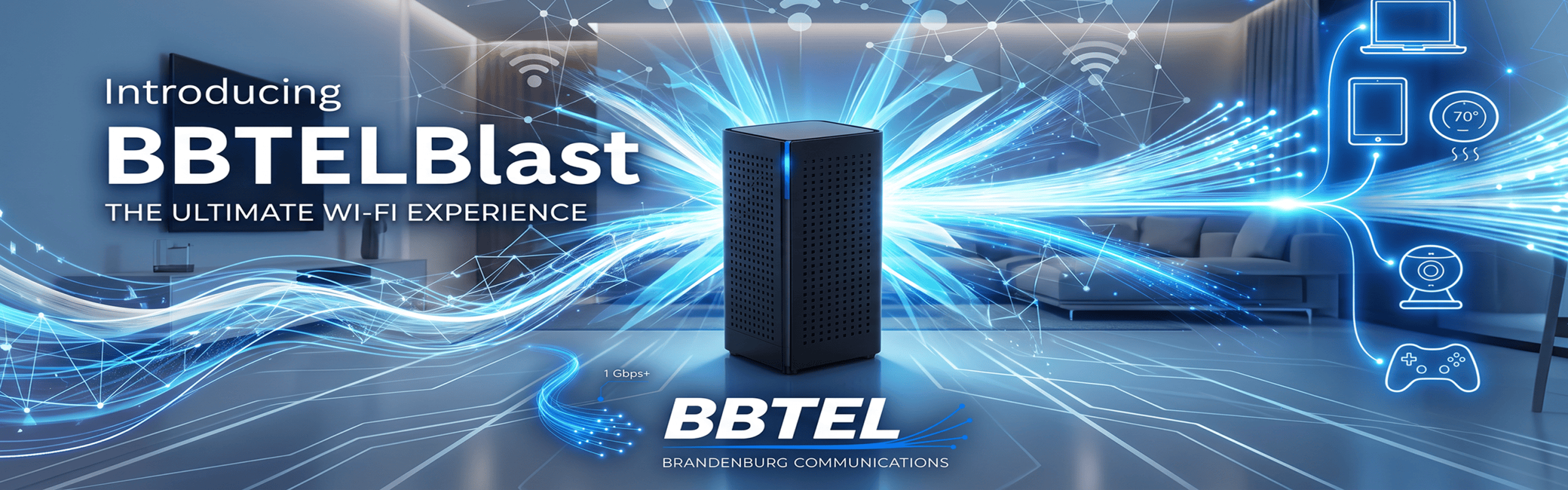
More than internet, you deserve the ultimate Wi-Fi experience. Connect anywhere in your home with the BBTELBlast Ultimate Wi-Fi Experience.
BBTEL STREAM
Current Brandenburg Customers
To make updates to your existing services, click below.
New to Brandenburg Communications?
To see if your address is within our service area, click below and enter your address.